Your iPhone comes with powerful assistive technology (AT) built in—useful for checking how well your mobile app is supporting accessibility. When mobile apps don’t work well with one AT, they often don’t work with others.
What is VoiceOver?
All iOS and iPadOS devices include the VoiceOver (VO) screen reader. Enabling VO allows a person to tap on the screen or drag their finger to hear the contents announced audibly. Many VO users are blind but other people use screen readers too. With VO enabled, swipe right to move sequentially through the content, and swipe left to move backwards through the content. Double-tap anywhere on the screen to activate buttons and controls. The Rotor allows for more advanced screen reader options, like browsing by headings.
Supporting VO means ensuring all buttons and controls in mobile apps have accessible names and that the focus order of the content makes sense when swiping. Content in native mobile apps should be structured with headings and grouped into logical swipe stops. VO users must be able to perform the same actions and reach the same content as sighted users without VO enabled.
Enabling VoiceOver on iOS
Be cautious when enabling any AT on a mobile device. Make sure you understand how to disable it again so you don’t get stuck, unable to navigate the device.
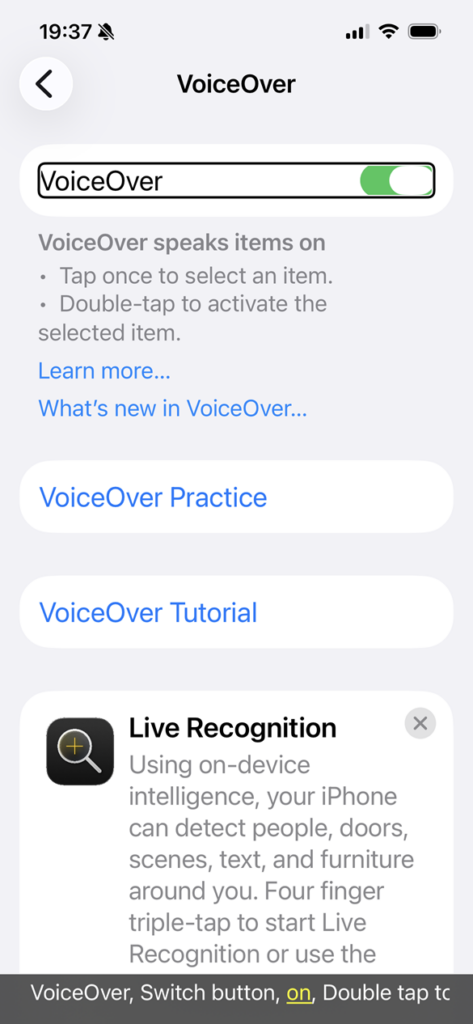
- Settings app > Accessibility > VoiceOver > Toggle VoiceOver switch on/off
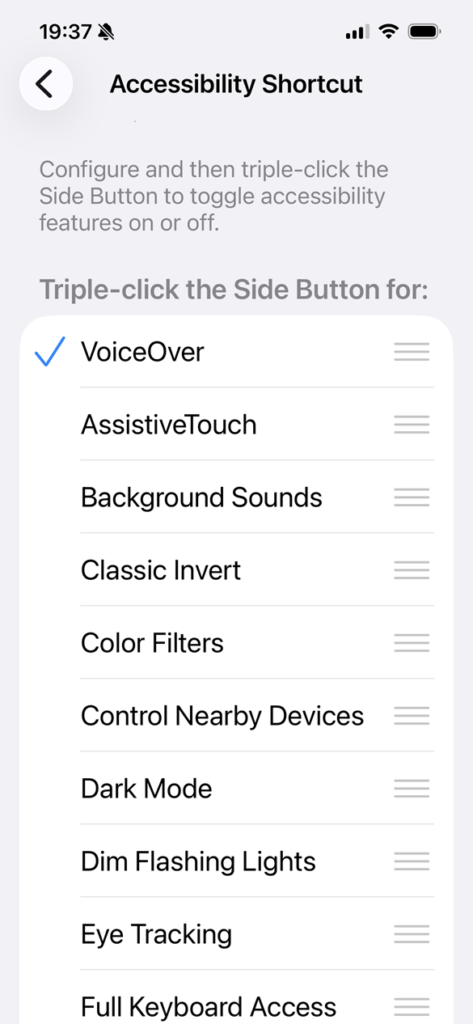
- Settings app > Accessibility > Accessibility Shortcut > Select VoiceOver from the list
My preferred method of enabling VO on iOS is to add “VoiceOver” to the Accessibility Shortcut menu. This allows you to triple-click the (right) side button to turn VO on and off quickly. You can also add other assistive technologies and settings to choose from the menu that appears when you triple-click the side button, including Voice Control and Full Keyboard Access.
Using VoiceOver
- Triple-click the side button to turn VO on or off
- Single tap to select an item on the screen
- Double-tap to activate buttons and controls
- Swipe right to move forwards in the reading order
- Swipe left to move backwards in the reading order
- More VoiceOver gestures for iPhone
Video: VoiceOver navigation example
A VoiceOver user swipes sequentially through the content on the USAA app landing screen starting with the USAA image which announces “USAA image”. Swipe right and VoiceOver announces “Log on button”. Swipe right again and VoiceOver announces “Join USAA button”. Swipe right to the content grouping and VoiceOver announces “Browse USAA Products For insurance, banking, life insurance and advise, let us serve you. button”. Double-tap to activate the “Browse USAA Products” button to go to the Products screen. VoiceOver announces “Close button” and “Products heading”. Swiping through the four buttons available on the screen, VoiceOver announces the visible text and the button role of each swipe stop.
Related articles
- 4 iOS display settings to check your app with
- AT for iPhone: VoiceOver screen reader
- AT for iPhone: Voice Control speech input
- AT for iPhone: Full Keyboard Access
Screenshots and videos taken on an iPhone 16e running iOS 26.4.